Alerts
Get told when a number moves instead of checking for it.
The KPIs that bite are the ones nobody was watching.
The bell in the detail page header opens a short wizard. The first step asks for a lower boundary and an upper boundary — leave either empty and no boundary is set on that side, so you can alert on only one direction.
The last step sets monthly offset and alert frequency. Offset decides which month is checked: 0 is the current month, −1 the previous one.
The offset matters more than it looks. If a month's data only lands part-way through the following month, an alert checking the current month will keep firing against an incomplete figure — and people learn to ignore it. Set the offset to a month that is actually closed.
Frequency decides how often the check runs, and the alert always fires at the end of the chosen timeframe — a daily alert at the end of the day.
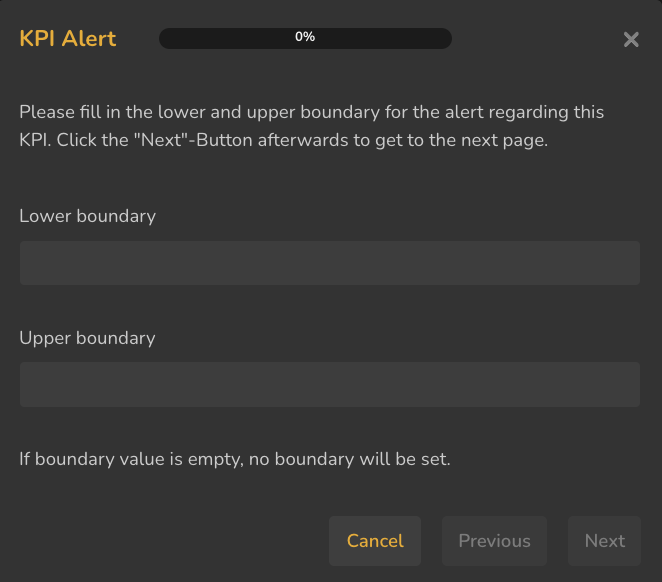
- 1Lower boundary
- 2Upper boundary
- 3Leave one empty to alert in one direction only
ValueWorks 2026.08
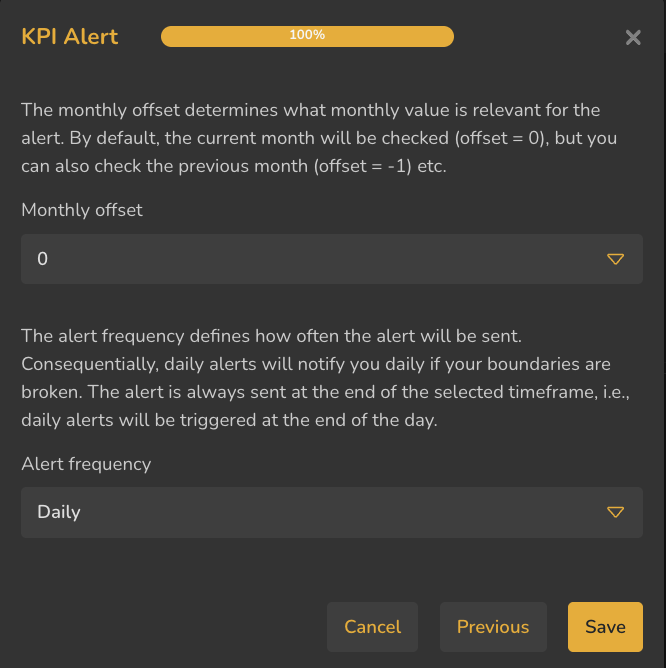
- 1Monthly offset — 0 is the current month, −1 the previous
- 2Alert frequency
- 3The alert fires at the end of the chosen timeframe
ValueWorks 2026.08
Takeaways
Set a lower or upper boundary, or just one, from the bell in the header.
Offset chooses which month is checked — 0 is current, −1 the previous.
The alert fires at the end of the selected timeframe — a daily alert at the end of the day.
Surfaces covered
- Reporting
- My Dashboard
Also taught in the Academy
Module 3 · Investigate a number
Take it as lesson 3.8 in Business Analyst & FP&A